What's new: Image Choice, sliders, and top-N ranking
Let participants answer by picking a picture, show several images and videos on one question, collect ratings and allocations on sliders, rank only the top choices, keep "None of these" in place while options shuffle, offer an N/A answer, and check the format of short answers.
A roundup of new ways to ask survey questions, headlined by a question type that lets participants answer with a picture.
Image Choice
When you're comparing packaging, logos, or ad concepts, the natural question is "Which of these would you pick?" Until now, that meant showing the designs as media and listing their names as options, so participants had to match labels to pictures.
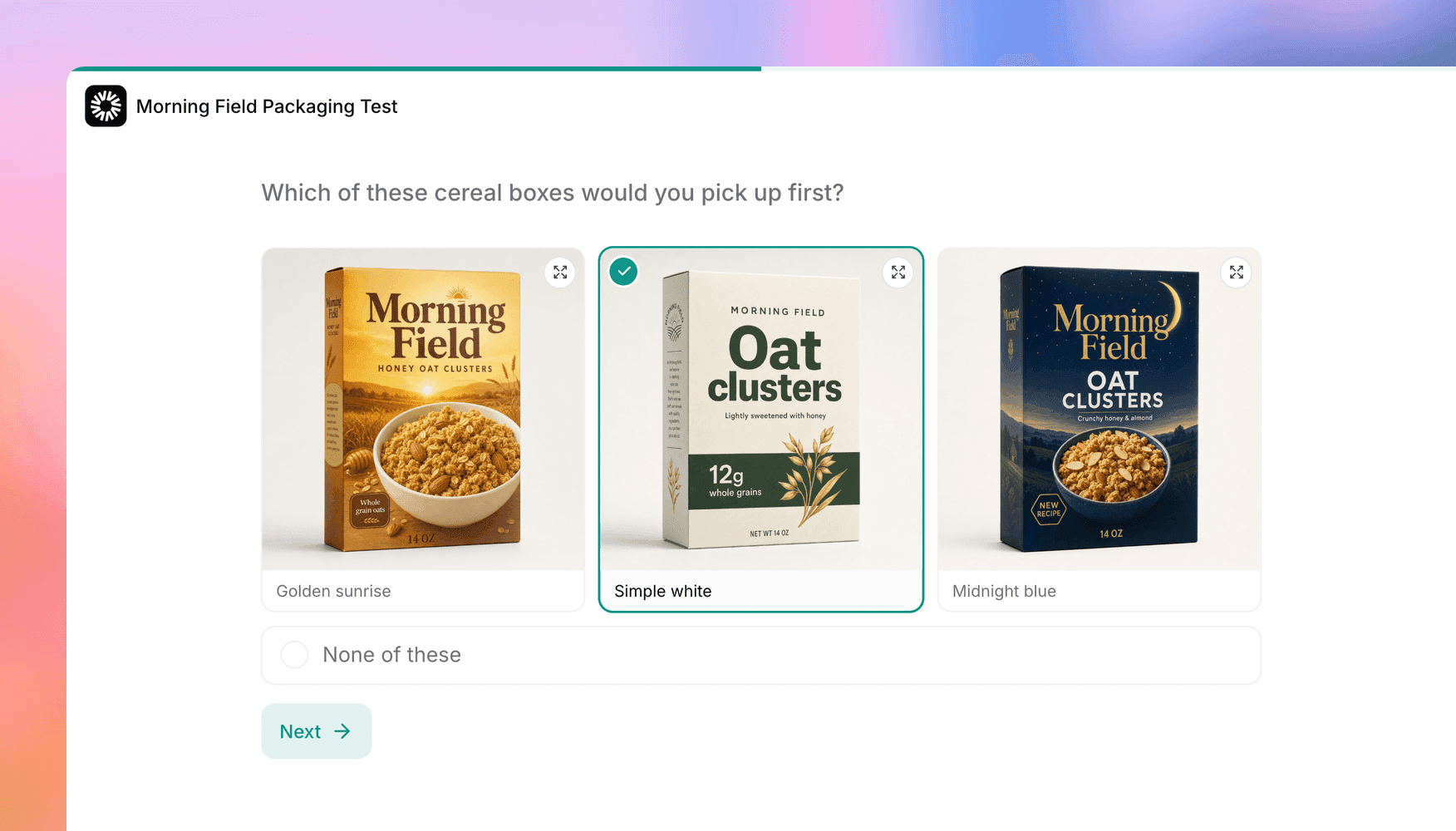
Image Choice puts the pictures themselves in the answer. Each answer has its own picture, participants can enlarge one before they choose, and they answer with a tap. Ask "Which of these cereal boxes would you pick up first?" with three box designs, and you get a straight comparison.
You can show up to six pictures, in small, medium, or large tiles, with or without each answer's text underneath. A None of these answer is always there, the pictures are shuffled for each participant by default, and you can allow several picks or add a free-text Other. The answer is saved as that answer's text, so logic, quotas, filters, and exports work as they do for Multiple Choice.
To find out why someone picked a design, add an AI Question after a single-select Image Choice and choose Add asset > The picture picked in question N. That question shows only the picture the participant chose, and the AI interviewer knows what's in it, so it can ask about the design itself. Image Choice isn't offered in voice-only studies.
Several images and videos on one question
Some concepts need more than one asset: a video ad and two still frames from it, or a product shot next to its pricing page. A question can now show up to five images, videos, and PDFs together, in the order you set. Inline assets stack in the question column, and full-screen ones show one at a time beside the question, with previous and next buttons.
The AI interviewer is told about every asset the participant sees, in order, so its follow-ups can refer to the right one. A Figma prototype or an embedded website is still the only asset on its question. In a multi-language study, you can replace any of the assets for each language. The question media docs have the details.
Sliders for ratings and allocations
A row of buttons works for a 1 to 5 scale, but not for "How likely are you to switch in the next year, from 0 to 100%?" Rating Scale questions now have a Slider format, with your own range, step (decimals allowed), and end labels. By default, the handle stays hidden until the participant touches the slider, so every answer is a deliberate choice, and you can add an N/A answer like "Don't know." Insights show a histogram and an average that leaves N/A out.
Allocation questions get sliders too. Ask "What share of your patients is on each treatment?" and participants drag a slider per treatment while a running total under the list shows how close they are to 100%. Turn on Stop at the total if a slider shouldn't go past what's left. The answer is stored the same way as with number inputs, so your logic and exports don't change.
Rank only the top choices
Ranking 15 vendors from first to last tells you a lot about the top three and very little about the rest, and it wears participants out. Turn on Rank top N to ask for the top choices only, and choose whether participants rank exactly that many or up to that many. Results show, for each option, how often it made the top N, how often it came first, and its average rank among the people who ranked it.
Multiple Choice: columns, search, and anchored options
Long Multiple Choice lists are easier to scan. Show the options in two or three columns, and add a search box, so a participant looking for their state among 50 can type "New" instead of scrolling. Phones always show one column.
Shuffling the options controls for order bias, but some options belong in one place: "None of these" at the end, or "All of these" at the top. With Randomize on, anchor those options, and they keep their place while the rest shuffle around them. Each participant sees the same order when they go back, translations keep the anchors you set in the default language, and Image Choice pictures can be anchored the same way.
An N/A answer for numbers and dates
When a participant can't answer a number question, they often type 0, and real zeros get mixed up with opt-outs. Number, Date, Allocation, and Matrix Allocation questions can now offer an N/A option with your own label, like "Unable to assess." Ticking it clears the field, and the answer is saved as N/A.
Insights leave N/A answers out of averages and count them on their own. On a Number question, logic can test for N/A too, so you can skip a follow-up question for anyone who chose it.
Answer formats and a softer "required"
Short Text questions can now check the format of an answer: a phone number, a postal code for the country you pick, numbers only, letters only, a website, or your own pattern. Add an example answer to show participants what you expect, and test it in the Try it box before you publish. On phones, the keyboard matches the format, so a postal code field opens the number pad when the country's codes are numeric.
Sometimes you'd like an answer but don't want to force one. Turn off Required and turn on Request response, and a participant who tries to skip sees one reminder before they can move on. It works on every question type with a Required setting except Ranking, in surveys and in AI-moderated interviews.
The question types docs cover every new setting, and the Versive Assistant, the API, and AI apps connected over MCP can set them up for you.
Get in touch
We're always building. If you have any questions or feature requests, reach out to us at [email protected]. Want to get started? Sign up today and start running research in minutes.

Eric Li, Co-Founder, Versive